 Vastefy
Installing Vastefy on Your Shopify Theme in Under 10 Minutes
A merchant-friendly walkthrough of the Vastefy install — from the Shopify App Store to a live try-on button — with no theme code edits required.
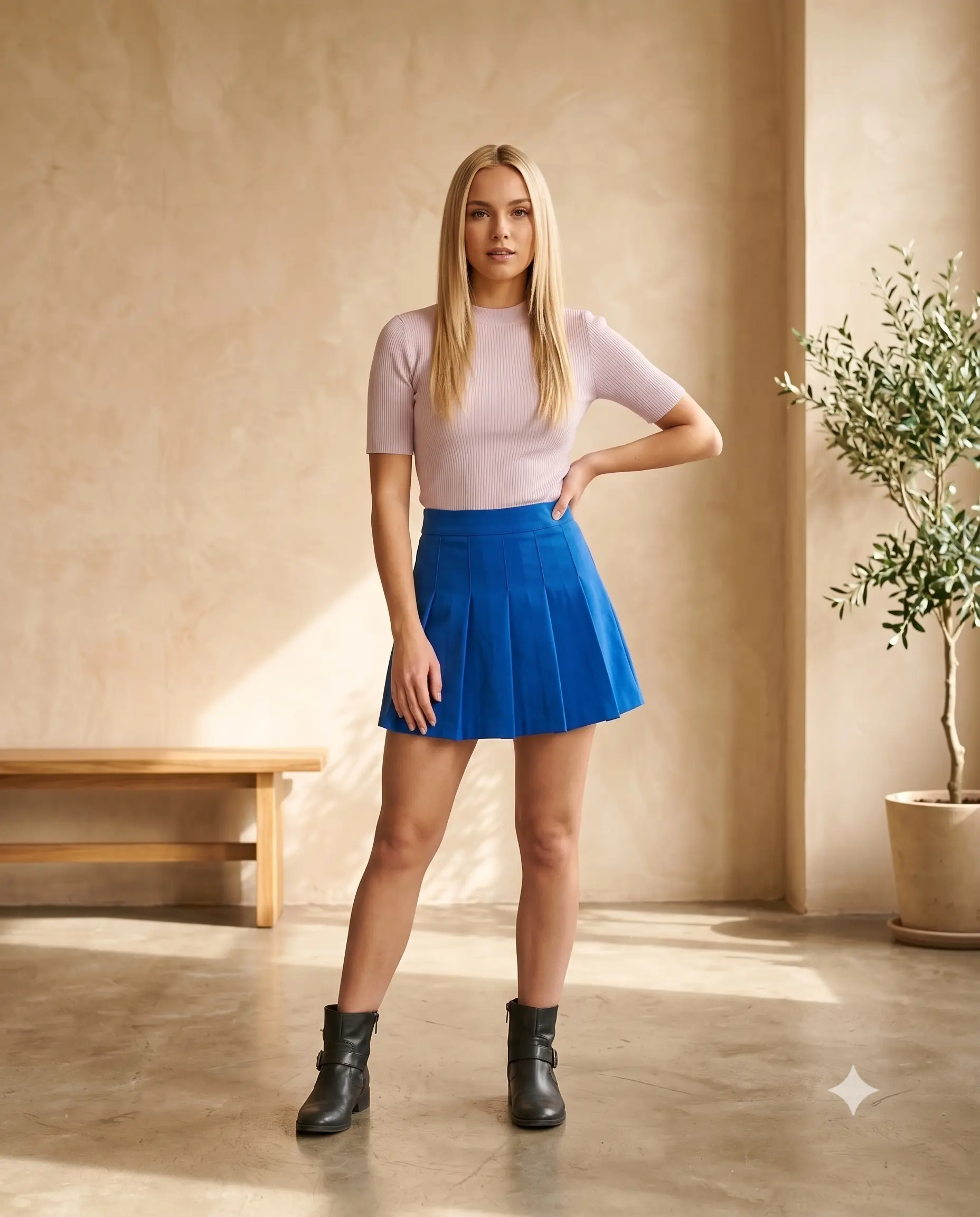
Vastefy ships as a Shopify theme app extension, which means the install is an app-block drag, not a code change. Here is the entire process, start to finish.
Before you begin
- A Shopify store on any plan, with the Online Store sales channel enabled.
- At least one product with a clean, front-facing garment photo.
- Two minutes to approve the app permissions.
Step 1 — Add the app
Install Vastefy from the Shopify App Store and approve the requested scopes. Vastefy only requests what it needs to read your product catalogue and inject the widget block.
Step 2 — Enable the app embed
- In Shopify admin, go to Online Store → Themes.
- Click Customize on your live theme.
- Open App embeds in the left sidebar.
- Toggle Vastefy Virtual Try-On on and save.
The widget loader is now present on every page, loaded asynchronously so it cannot block your storefront rendering.
Step 3 — Add the try-on block to product pages (optional)
- In the theme editor, navigate to a Product template.
- Choose Add block → Apps → Vastefy Try-On.
- Drag the block above your Add to Cart button so shoppers meet it early.
- Save, then preview the product page on desktop and mobile.
With FAB (floating button), no need to edit anything in your theme, just complete step-2, the app loads on your store instantly.
Step 4 — Confirm credits and catalogue sync
Open the Vastefy dashboard from Apps in your Shopify admin. Your free trial credits are already available, and the product sync runs automatically. Each completed try-on generation consumes one credit.
You do not need to map garment categories by hand. Vastefy detects upper wear, lower wear, dresses and outerwear from the product data Shopify already stores.
Step 5 — Style the widget
From the dashboard you can match the button label, accent colour and placement to your brand. Theme updates do not remove the block, because theme app extensions live outside your theme's Liquid files.
Troubleshooting
If the button does not appear, check that the app embed is enabled on the theme you are actually publishing, and that the product's images are square or portrait rather than collages. Rarely, a store with a heavily customised product template needs the block re-added after a theme swap — allow five minutes for that.
That is the whole install. If you would rather have it done with you, contact our team and we will walk through your catalogue together.
- Setup
- Theme App Extension
- Onboarding
See virtual try-on on your own catalogue
Vastefy installs as a native Shopify theme app extension — no theme code edits, no impact on Core Web Vitals.